

HubSpot pop-ups and forms for WordPress
Capture leads on your WordPress site and send them to HubSpot with the list, lifecycle stage and lead status already set. You can also keep your offers away from people who are already customers.
Connect HubSpot to WordPress in six steps
You need to be able to install plugins on your site and log in to HubSpot.
- 1Install the Convertful plugin
In WordPress, go to Plugins, Add New and search for Convertful. Install and activate the free plugin.
- 2Connect your site
Click Connect to Convertful on the plugin page and then Approve. New users can create a Convertful account from the same screen.
- 3Log in to HubSpot
In Convertful, add HubSpot under Integrations and click Connect. Logging in to HubSpot gives Convertful access to your account.
- 4Choose a list and map properties
Pick the default list for new contacts. Form fields are matched to HubSpot properties, and you can change any match.
- 5Add HubSpot actions
On the submit button, set the lifecycle stage and lead status, add the contact to a list or add a note.
- 6Place it and publish
Show the widget by post category, tag or page, or embed it in a post with a shortcode. Save and activate.
Leads arrive sorted for sales
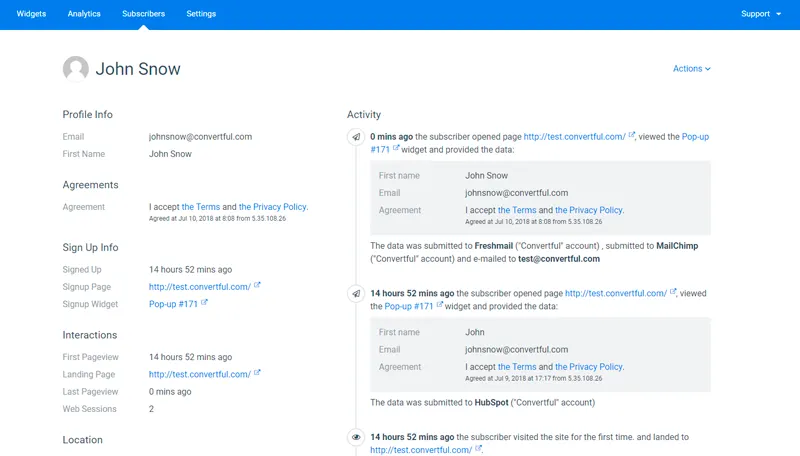
A demo request can set the lead status to New and the lifecycle stage to Lead, while a newsletter sign-up stays a Subscriber. Your sales team can pick up the right contacts straight away.
Every form field, from company name to job title, goes into the HubSpot property you choose.
Offers that skip existing customers
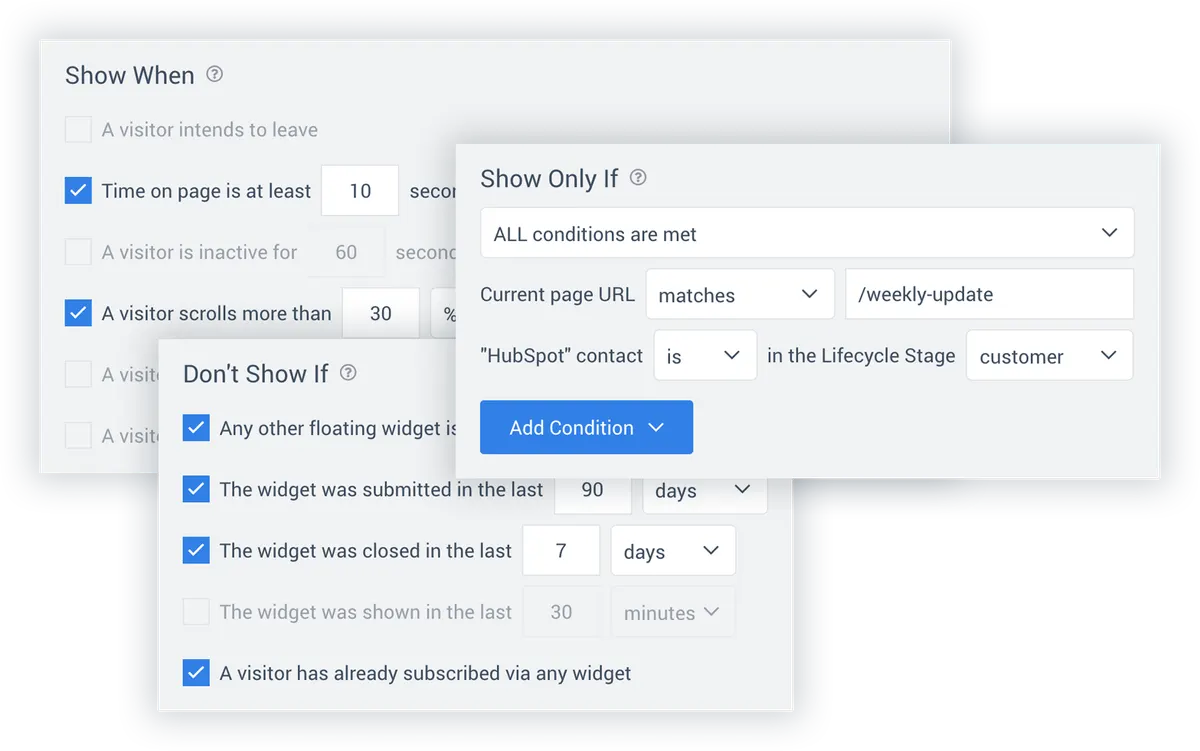
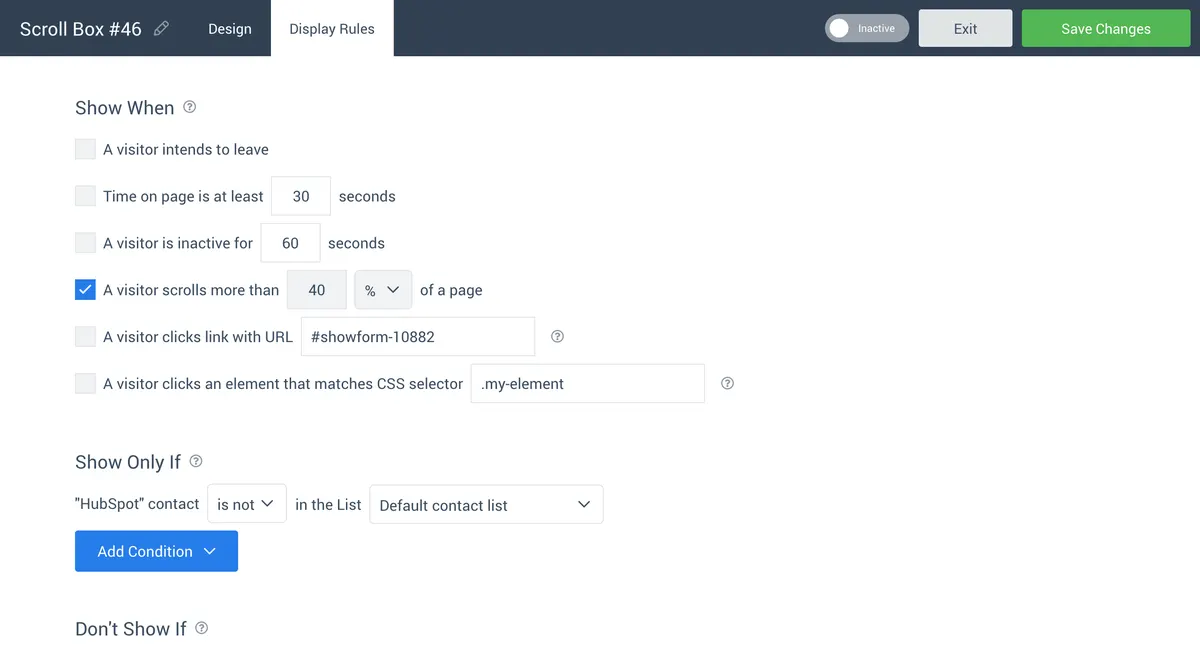
On Growth and above, widgets can read HubSpot. Show a lead magnet only to contacts who are not customers yet, or a webinar invite only to one HubSpot list.
- By section. WordPress rules put each offer on the right category, tag or post type.
- From your emails. Add
?conv_email={{contact.email}}to links in HubSpot emails so Convertful knows who clicked.
HubSpot widgets for WordPress sites
HubSpot and WordPress questions
Does every form go to the same HubSpot list?
Only if you want it to. The default list catches everyone, and each widget can add contacts to a different list with its own submit actions.
Can I place a HubSpot form inside a post?
Yes. Any widget can be an inline form, placed with a shortcode or added after the post content on every article.
Will contacts see the same offer twice?
Not if you don't want them to. Don't Show If rules hide a widget from anyone who has already subscribed, and a HubSpot lifecycle stage rule can hide it from customers.
Where are the full HubSpot settings explained?
The HubSpot setup docs cover the connection, default list, field matching and every action.
Other WordPress setup guides
Send your WordPress leads to HubSpot
Install the free plugin, log in to HubSpot and publish your first form.