

Build your offer. Choose who sees it.
Build pop-ups, scroll boxes, floating bars and other widgets in a visual drag-and-drop editor. Choose who sees each one and when, and send new leads to your email tool automatically.
Choose where your offer appears
Formats share one editor. Pick the placement that fits your page.
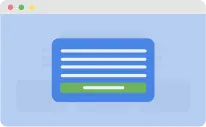
Pop-ups
An offer over the page.
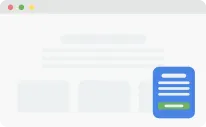
Scroll boxes
A box that slides in from a corner.
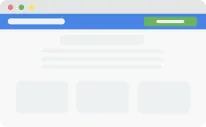
Floating bars
An announcement at the top or bottom.
Welcome mats
A full-screen welcome offer.
Inline forms
A form placed inside the page.
Floating buttons
A button that opens your chosen widget.
Chat bubbles
A bubble that opens a prepared message or form.
Choose what to offer
Use these examples to plan a campaign for your audience.
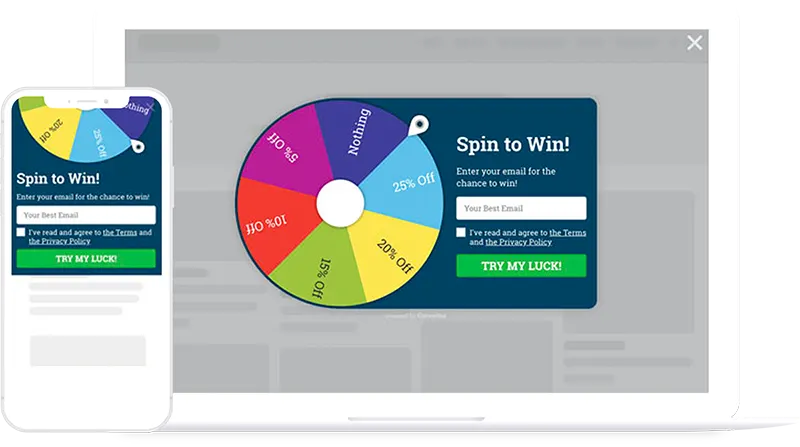
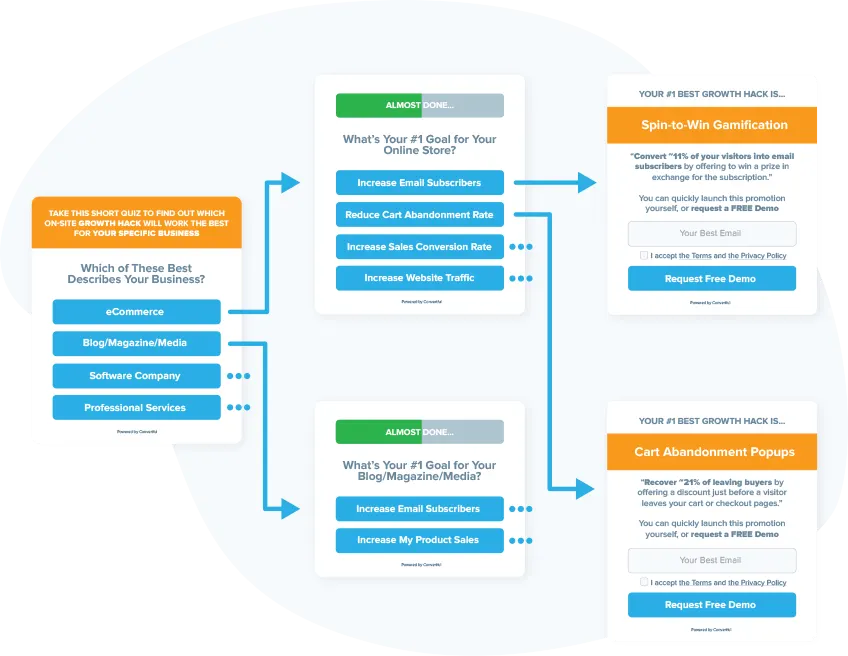
Spin-to-win
Offer visitors a prize wheel with a coupon to claim.
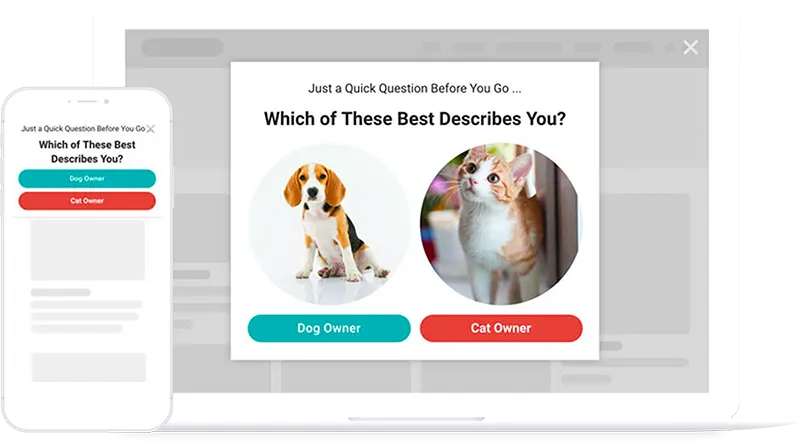
Segmentation surveys
Ask a question, then show an offer based on the answer. Surveys and multi-step widgets start on Starter.
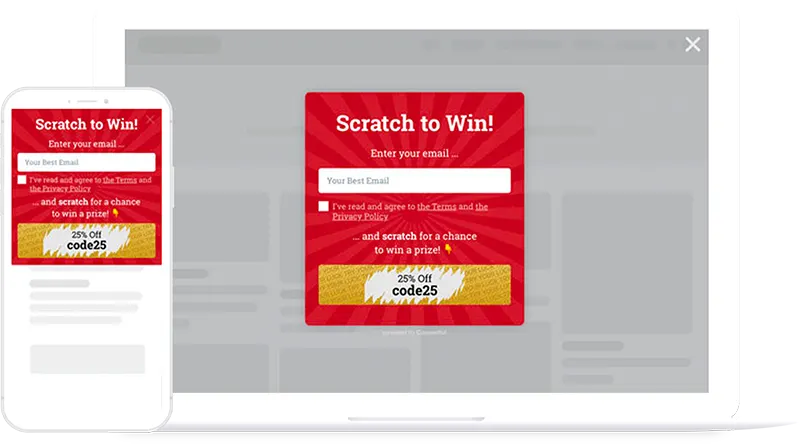
Scratch cards
Let visitors scratch a card to reveal a discount.
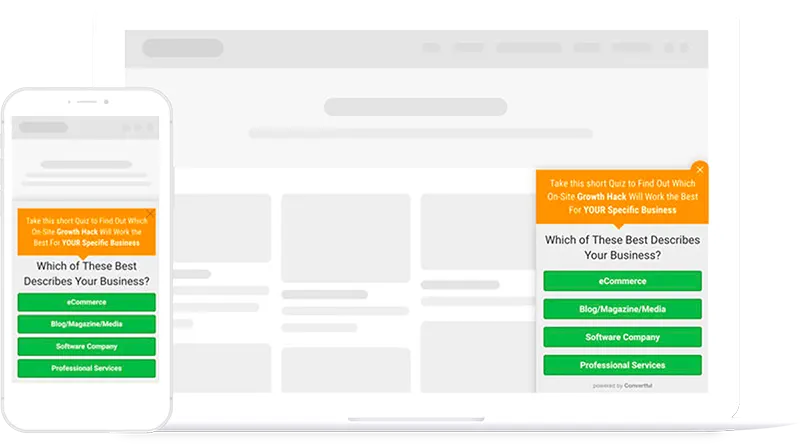
Quiz funnels
Guide visitors through questions to a result based on their answers. Quizzes start on Starter.
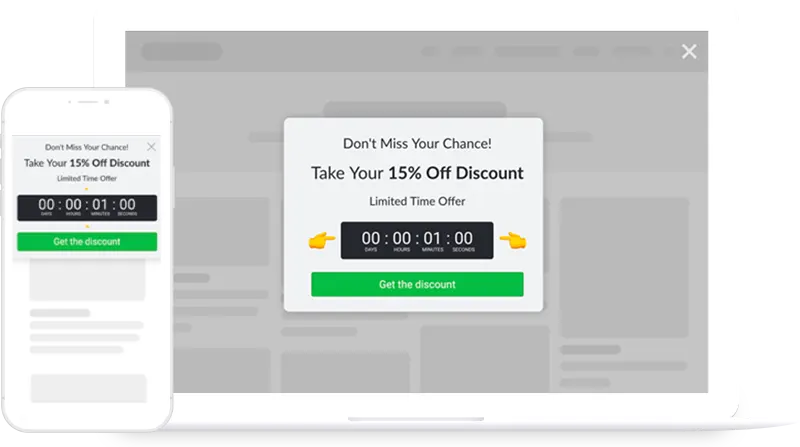
Cart abandonment pop-ups
Show a cart offer when a desktop shopper moves to leave.
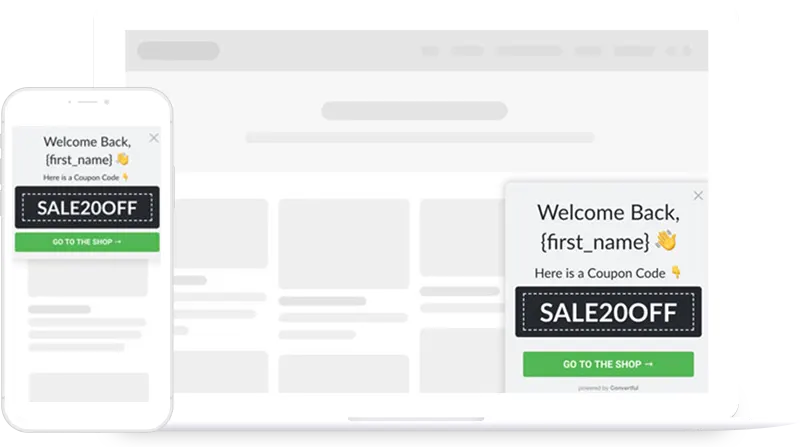
Account-based personal offers
Choose offers using supported CRM tags and fields. CRM-tag display rules start on Growth.
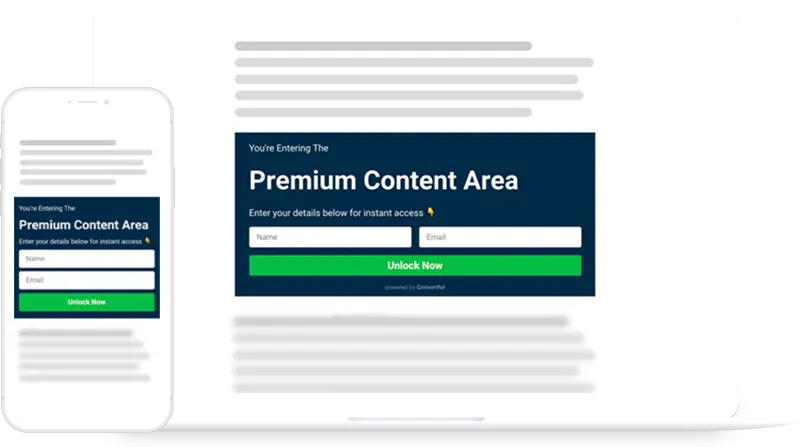
Content locking
Show selected content after a signup.
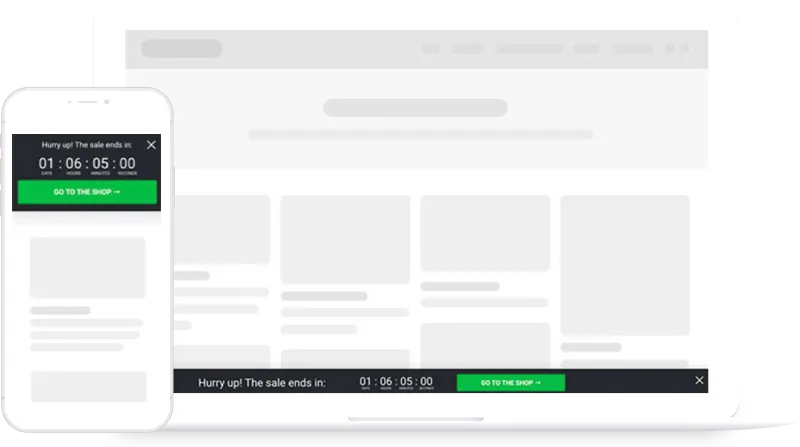
Deadline funnels
Display a countdown for your offer's deadline.
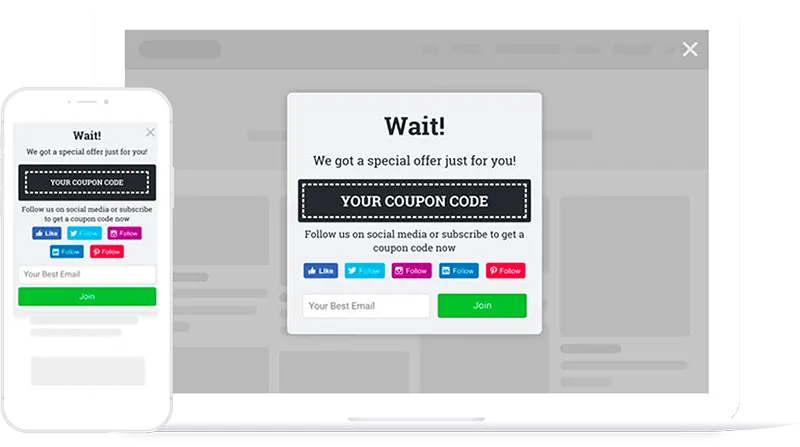
Follow coupon boxes
Present a social-follow prompt with a coupon offer.
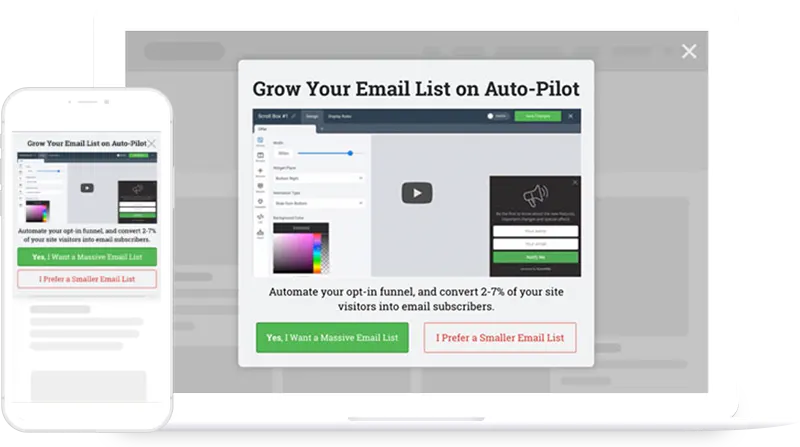
Welcome video pop-ups
Welcome new visitors with a video and a choice of next steps.
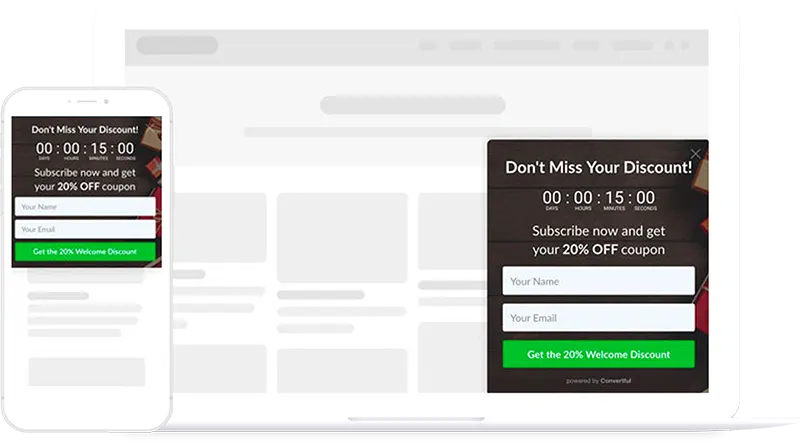
Welcome discounts
Offer new shoppers a first-order discount.
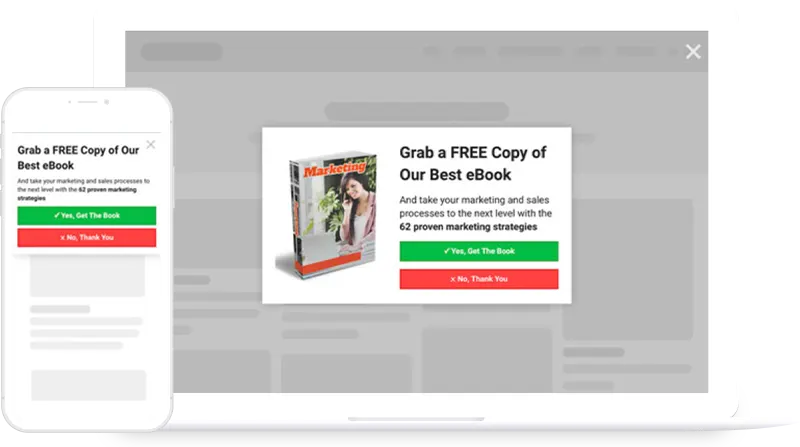
Yes/no exit intent pop-ups
Ask a question as a desktop visitor moves to leave. Multi-step screens start on Starter.
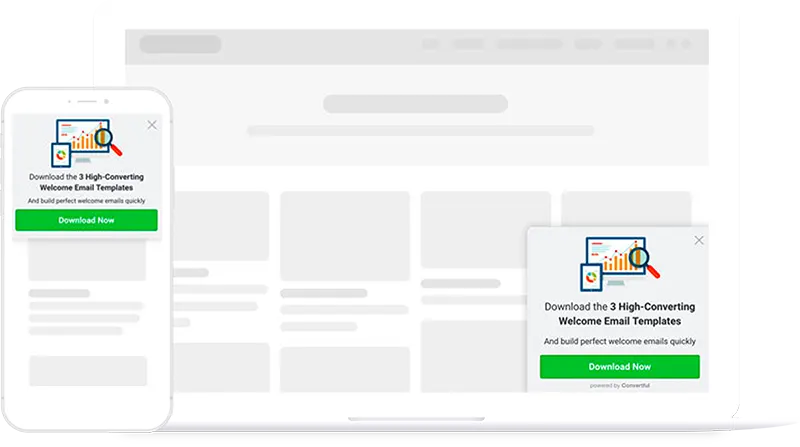
Targeted content upgrades
Offer a download related to the article.
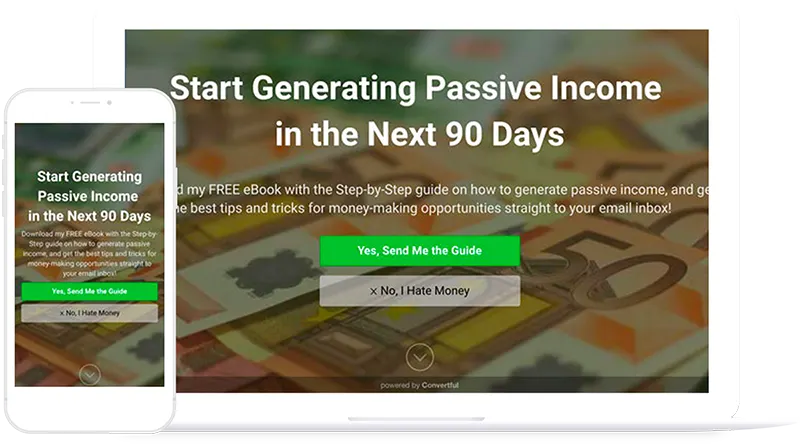
Yes/no welcome mats
Open with a full-screen offer and a yes/no choice. Multi-step screens start on Starter.
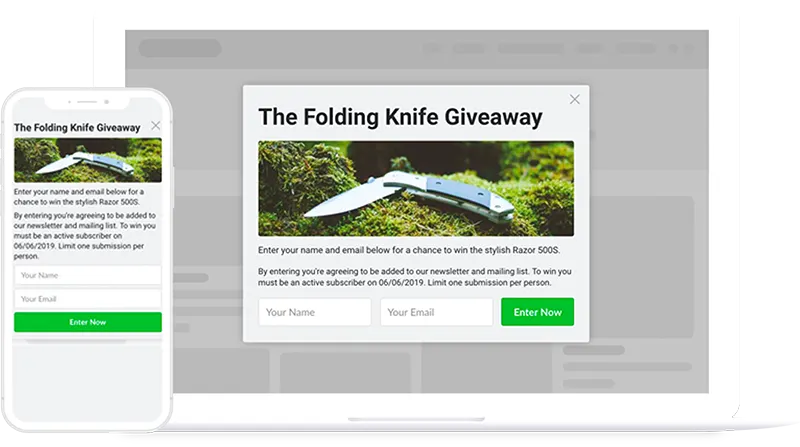
Welcome giveaway contests
Invite visitors to subscribe for a chance to win a prize.
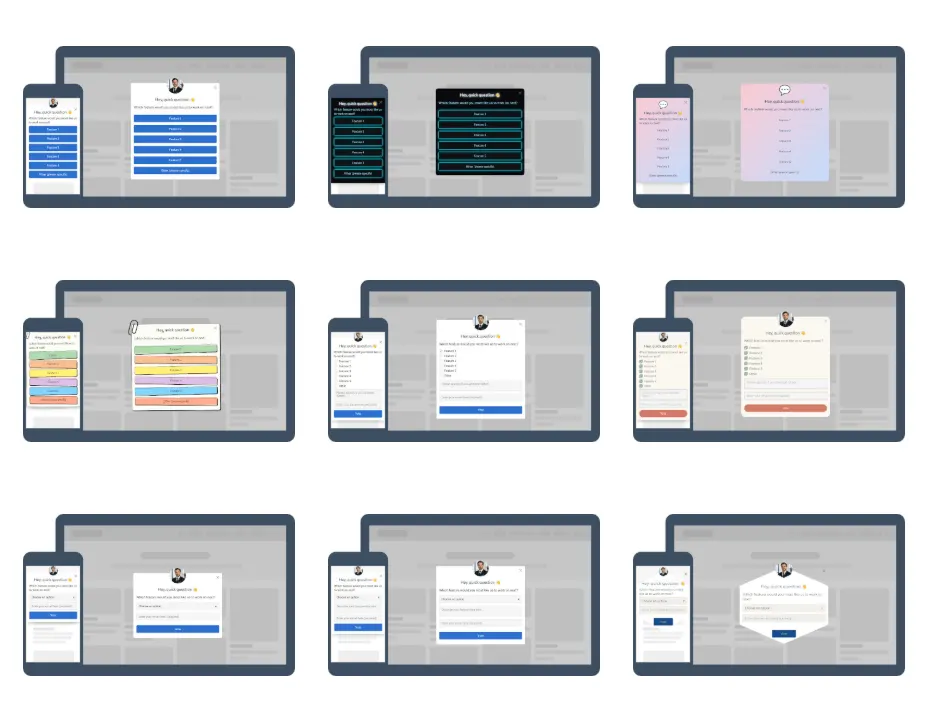
Polls
Ask one question and review button-vote totals.
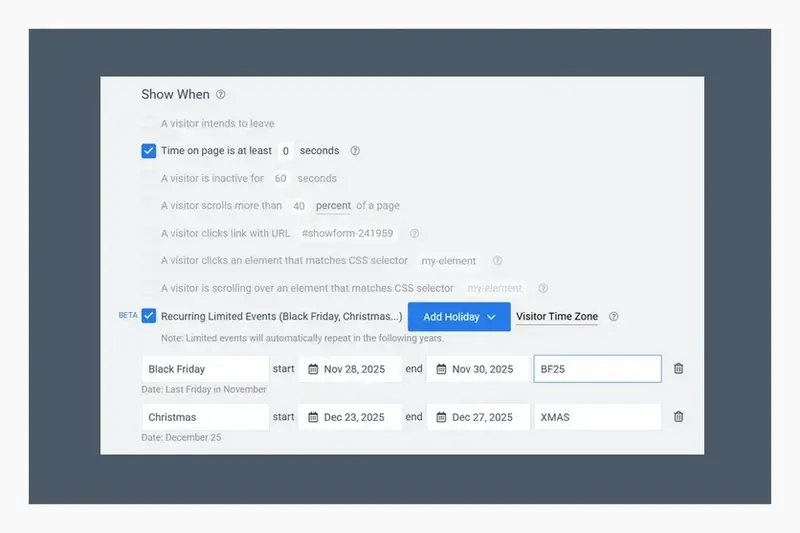
Seasonal campaigns
Schedule returning events. Starter and above.
Make the widget fit your site
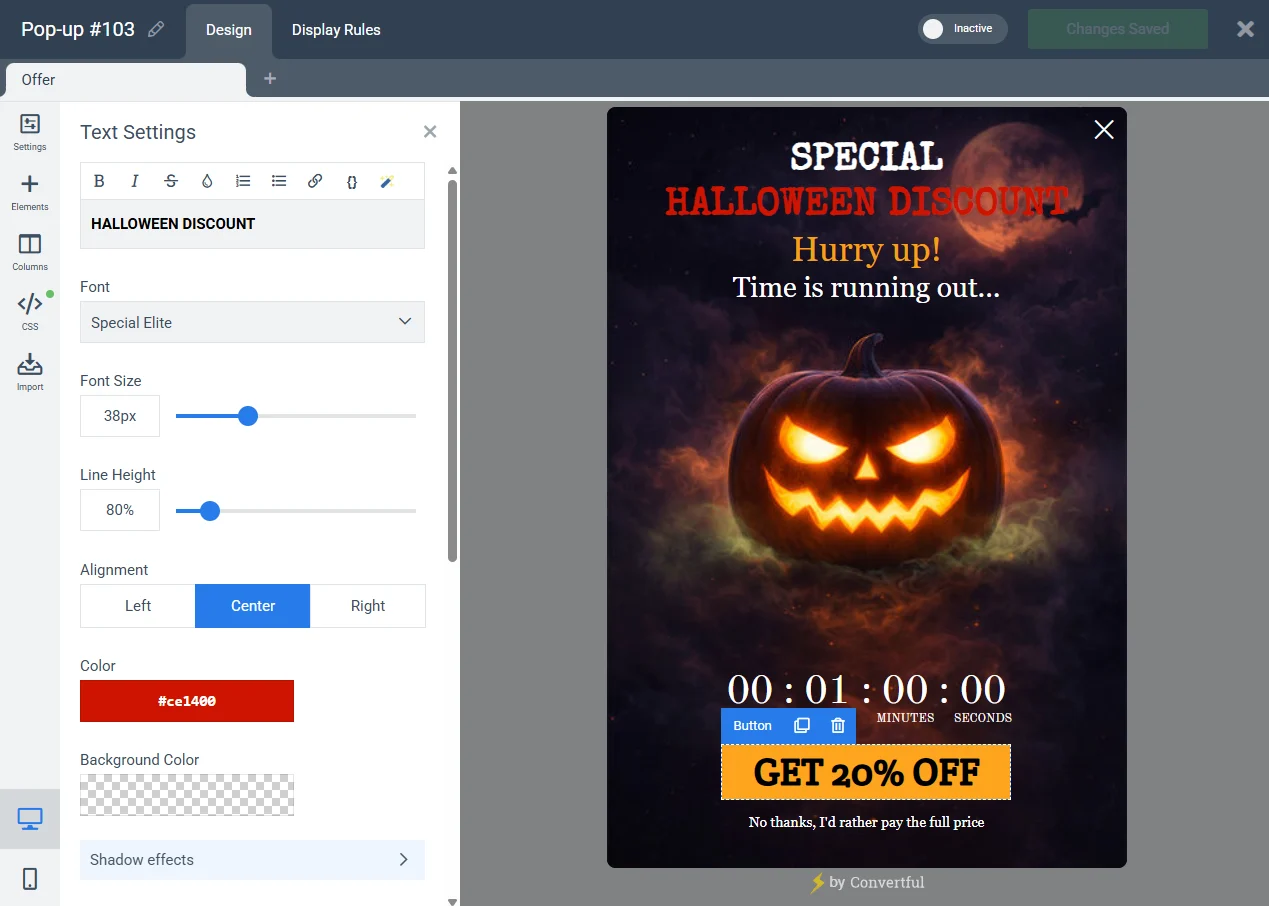
Edit the text, fields, images and layout in the drag-and-drop editor. Preview the mobile version and adjust it separately.
- Add form fields, buttons, images, video or custom HTML.
- Set fonts, colours, spacing and animation.
- Use dynamic text for supported visitor, date and cart values.
Elements you can add
- Text
- Dynamic text replacement
- Form fields
- Automatically collected data
- Buttons
- Images
- Progress bars
- Spin-to-win wheel
- Scratch card
- Follow buttons
- Videos and YouTube Shorts
- Testimonials
- Share buttons
- Countdown timer
- Empty space
- Custom HTML
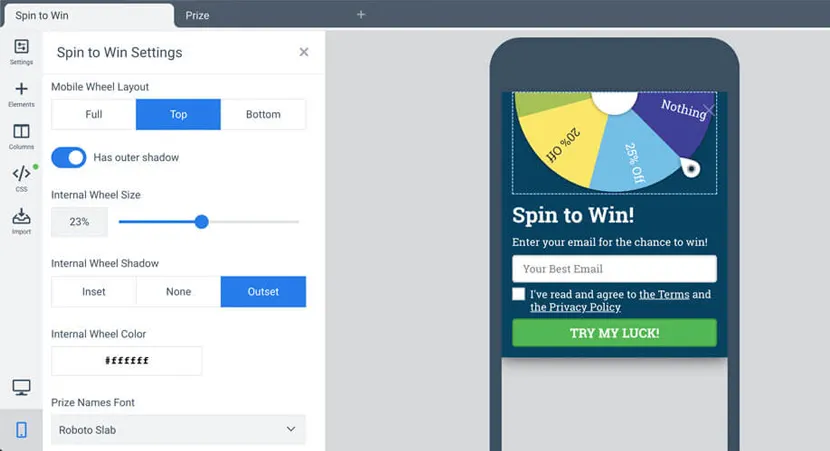
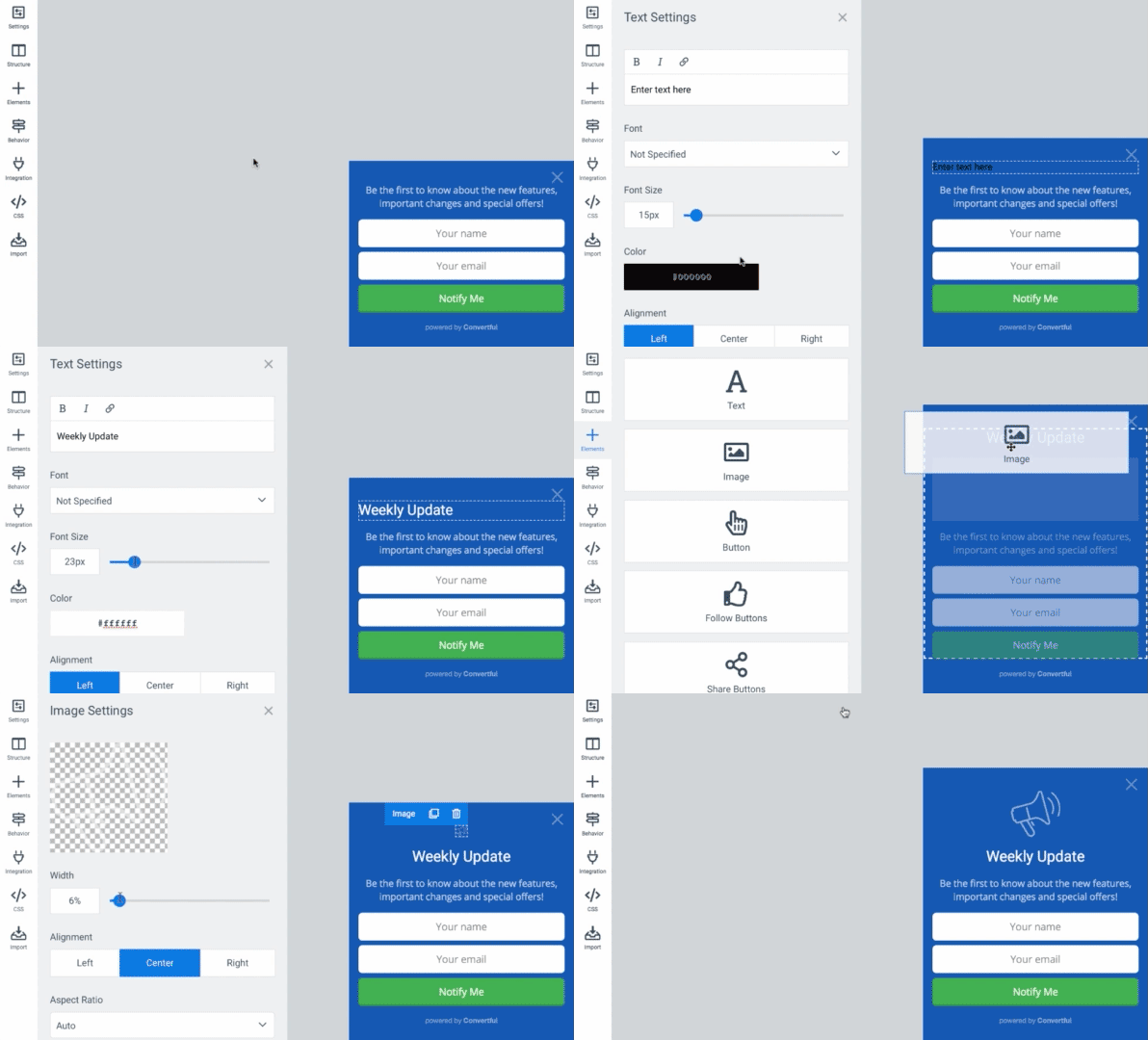
Draft copy and images in the editor
Describe your offer, review the draft and edit it before publishing. AI can also create widget variations for a split test.
- AI features start on Starter.
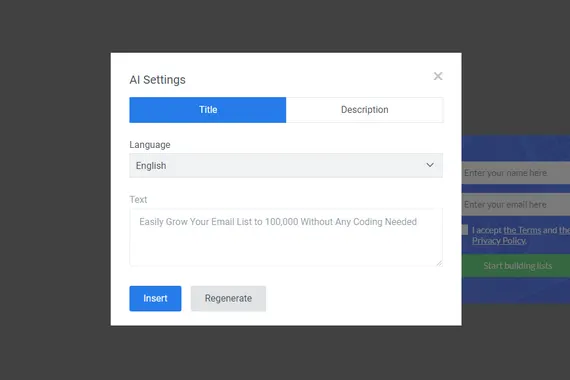
Ask a question or build a sequence
Collect form responses, run a poll or guide visitors through several screens. Buttons can lead to different result screens.
- Multi-step widgets, surveys and quizzes start on Starter.
- Poll button votes appear in analytics; text responses are stored with a contact.
Choose when the widget appears
Use a trigger that fits the page and device.
Exit intent
When a desktop cursor moves toward the browser controls.
Time on page
After a delay you choose.
Element click
When a visitor clicks a chosen button or link.
Page scroll
At a chosen depth in pixels or percent.
Inactivity
After a period without scrolling or clicking.
Inline
In the page at the position you choose.
Choose who sees it
Combine conditions with ‘and’ or ‘or’. Open a group for the details.
BehaviorChoose pages and browsing activity.
Visit sourceMatch referral sources and campaign links.
HistoryUse visits, dates and repeat schedules.
TechnologyMatch device, screen width or stored values.
Other widgetsSet frequency and priority.
Account-based targetingUse supported CRM tags and fields. Growth and above.
GeographyChoose countries, regions or cities.
WordPressMatch WordPress visitors and content.
Control the campaign and response
Schedule returning campaigns
Set event dates and coupons, then reuse the widget each year. Recurring Limited Events starts on Starter.
Choose what follows a click
Send a response to an integration, open a screen or link, or choose another supported button action.
Add details to your offer
Prizes and choices
Use a wheel, scratch card or yes/no screen. Multi-step screens start on Starter.
Offer deadlines
Display a fixed or visitor-based countdown for an actual offer.
Dynamic messages
Use supported visitor, date and cart values in the text. CRM-based personalisation starts on Starter.
Media and actions
Add video, animations, social buttons or custom HTML. Sound depends on browser interaction rules.
Review the response to each widget
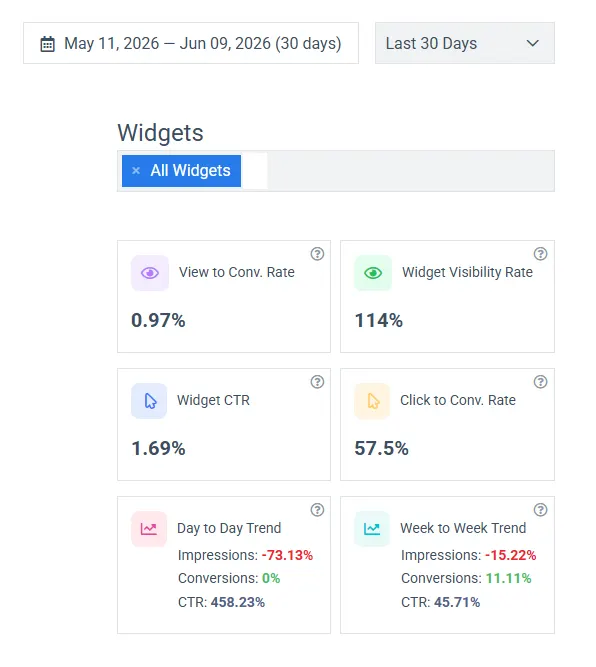
See impressions, conversions, conversion rate and button clicks. Compare widget results and read trends in the dashboard.
- A/B testing starts on Starter.
- Notes and sorting help you organise widgets.
Share a form or offer by link
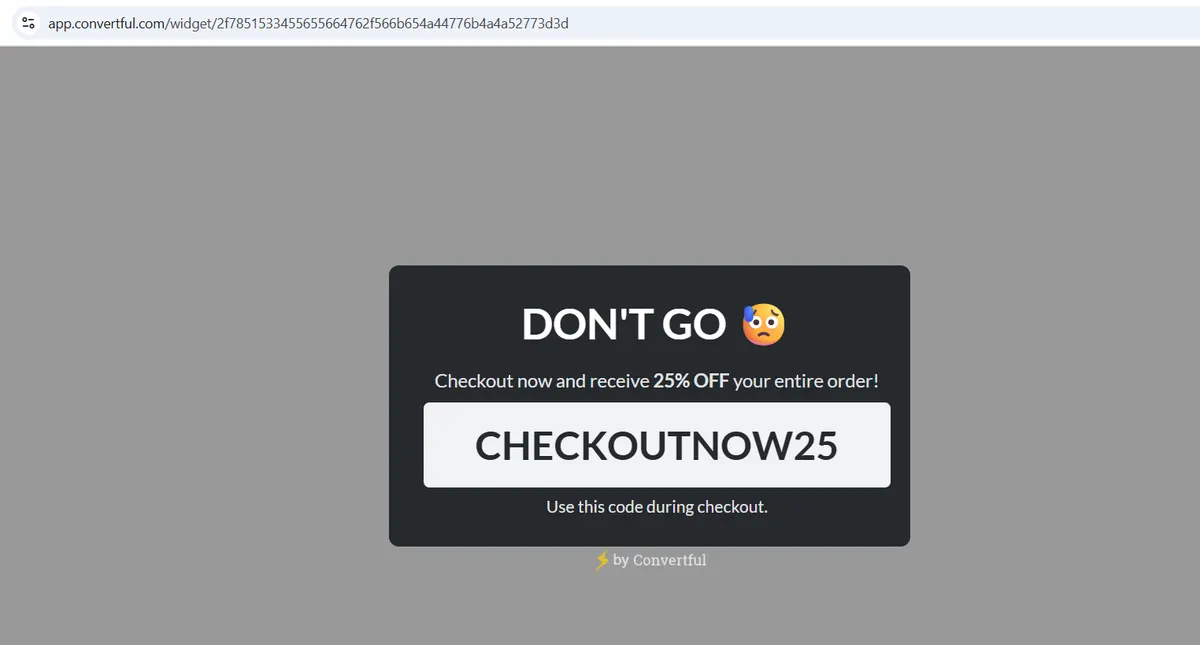
Create a widget on a page hosted by Convertful, then share its link in an email, social post or QR code.
- Hosted widgets start on Starter.
- Agency plans offer custom-domain branding.
Connect your email tool or CRM




 Brevo






 Zapier
 n8n
 WordPress
 Shopify
 WooCommerce
 Google Tag Manager
Supported two-way sync starts on Starter; CRM-tag display rules start on Growth.
Manage widgets and account access
What customers say about the editor
“The form/CTA builder is easy to use”
 Dustin D.Director of UX development
“It has some great logic options to optimize when, where, and how it appears on your website”
 Greg C.Marketing Director
Questions about features
Can I adjust widgets for mobile?
Yes. Preview the mobile version and adjust it in the editor. Device rules let you choose different widgets for phones and desktops.
Which features need a higher plan?
A/B testing, AI, multi-step widgets, surveys, quizzes, hosted widgets and recurring events start on Starter. Supported two-way CRM sync also starts on Starter. CRM-tag display rules and sub-accounts start on Growth. White label is on Agency plans. Compare plans.
How do I connect my website?
Use the standard WordPress plugin, Shopify app, connection script or Google Tag Manager. A site must allow the chosen connection method. Site connection guides.
Build your first widget
Choose a plan for your traffic and the features you need. Free 14-day trial. Cancel any time.