

Mailchimp pop-ups for your Shopify store
Grow your Mailchimp audience from your Shopify store with pop-ups, prize wheels and floating bars. Each widget can add its own tag or group, so you always know where a subscriber came from.
Set up Mailchimp on Shopify in six steps
Have your Mailchimp login and Shopify admin access ready.
- 1Install the Shopify app
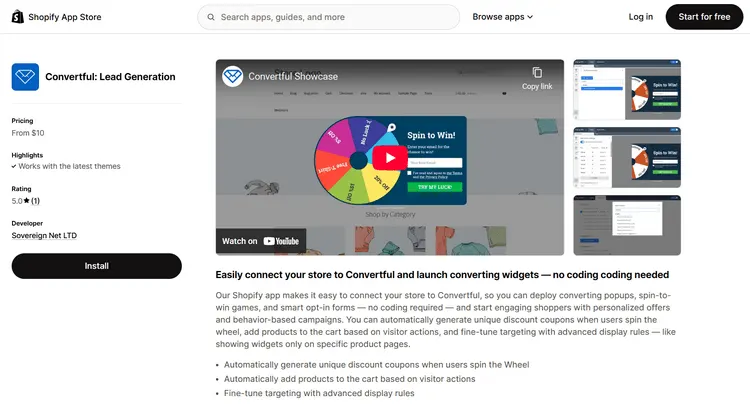
Install Convertful: Lead Generation from the Shopify App Store and click Approve to connect your store to Convertful.
- 2Turn on the app embed
Paste your Convertful Owner ID into the Convertful app embed in your theme settings, switch it on and save. Click Check Connection in Convertful. If you change theme later, repeat this step.
- 3Log in to Mailchimp from Convertful
Under Integrations, add Mailchimp and click Connect to log in. You can paste an API key instead, from Profile, Extras, API keys in Mailchimp.
- 4Choose your lists and fields
Tick the Mailchimp lists that belong to this store and pick the default list. Convertful matches your merge fields, and you can adjust any match.
- 5Add tags and groups to the button
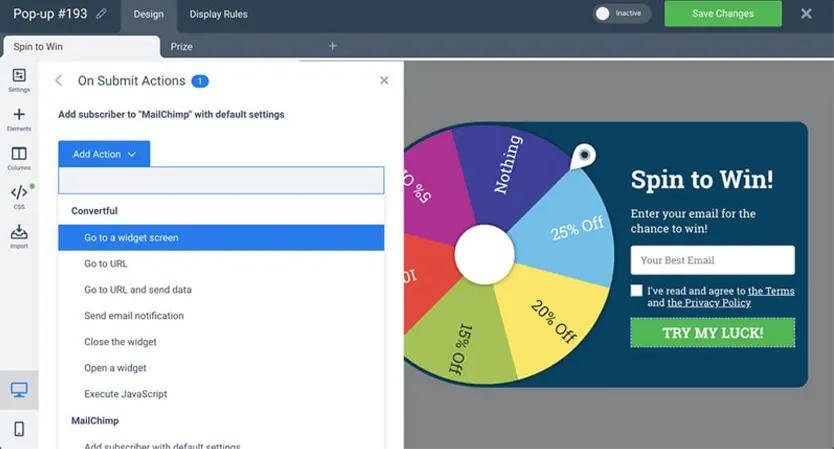
In the widget editor, open the submit button's On Submit Actions and add the Mailchimp actions you want: a list, a group, a tag or a note.
- 6Choose who sees it and publish
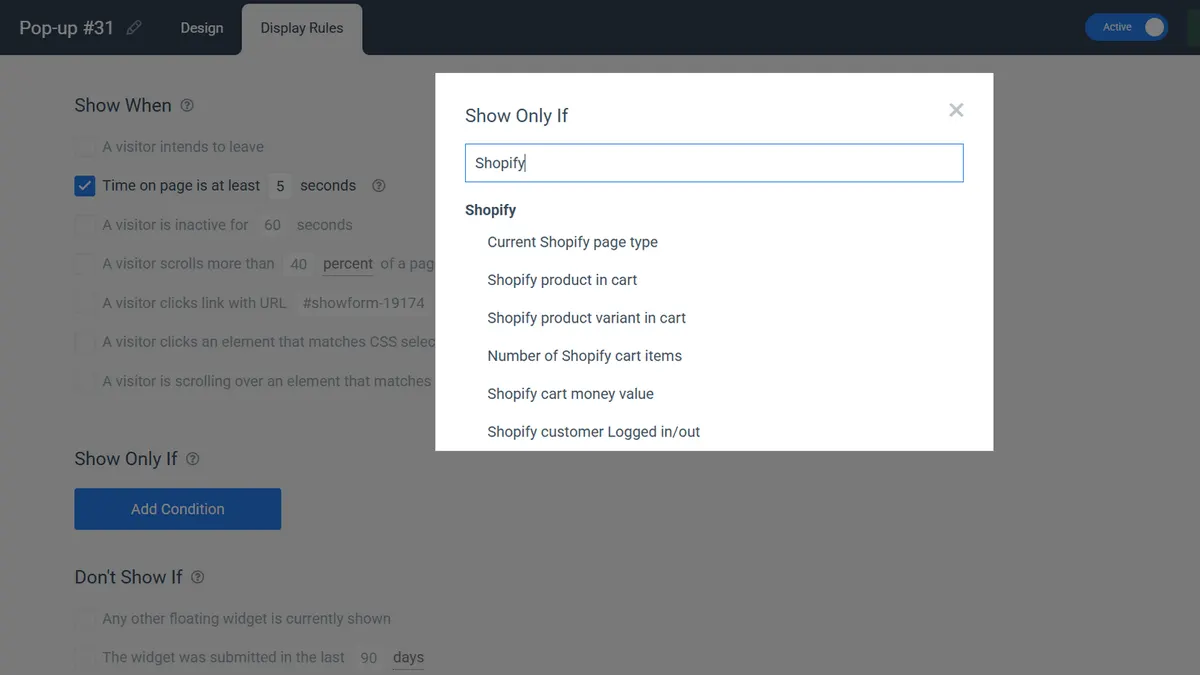
Set the trigger and the pages, add Shopify or Mailchimp rules if you need them, then save and activate the widget.
Tags that show where each subscriber came from
Give each widget its own Mailchimp tag or group, such as the welcome wheel or the cart saver. Your audience is segmented as people sign up, and each segment can get the follow-up that fits.
A spin-to-win or scratch card also saves the prize and its code, which you can map to a Mailchimp merge field.
Offers based on Mailchimp tags
On Growth and above, a widget can check Mailchimp before it shows. Target a tag, a group, a list or a merge field value, so a subscriber who already has your welcome code sees a different offer.
- Know who clicked. Add
?conv_email=*|EMAIL|*to the links in your Mailchimp campaigns. - Logged-in customers. A Shopify rule can show a widget only to shoppers who are logged out.
Mailchimp widgets for Shopify stores
Scratch card welcome offer
A unique Shopify code per scratch, with a welcome tag in Mailchimp.
Black Friday early access
Collect sign-ups for your sale into a Mailchimp group in the weeks before it starts.
Exit offer for new shoppers
Shown on exit to logged-out visitors only, and tagged in Mailchimp for your follow-up.
Mailchimp and Shopify questions
Why are some subscribers missing from Mailchimp?
Most often a field that Mailchimp marks as required is missing from the widget, or double opt-in is on and the person has not confirmed yet. Mailchimp also turns away test addresses such as anything at test.com, and an address you removed from the audience may be marked as unsubscribed, which stops it joining again.
Can the Shopify discount code go into a Mailchimp email?
Yes. A spin-to-win or scratch card saves the prize and the code in fields you name, and you can map those to Mailchimp merge fields. Unique Shopify codes are part of the Shopify premium features, a one-time $10 payment.
How do I test without adding junk to my audience?
Use a Gmail alias such as yourname+test1@gmail.com. Mailchimp treats it as a new address, and the emails still reach your own inbox.
Does Convertful work with Mailchimp double opt-in?
Yes. Switch on the double opt-in option in Convertful's Mailchimp settings and turn it on for the audience in Mailchimp. Mailchimp sends the confirmation email, and people join the list once they confirm.
Other Shopify setup guides
Grow your Mailchimp audience from Shopify
Install the free app, log in to Mailchimp and publish your first pop-up.