

MailerLite pop-ups for your Shopify store
Add Shopify shoppers to the right MailerLite group from pop-ups, prize wheels and floating bars. Each widget can fill its own group and save extra details in MailerLite fields.
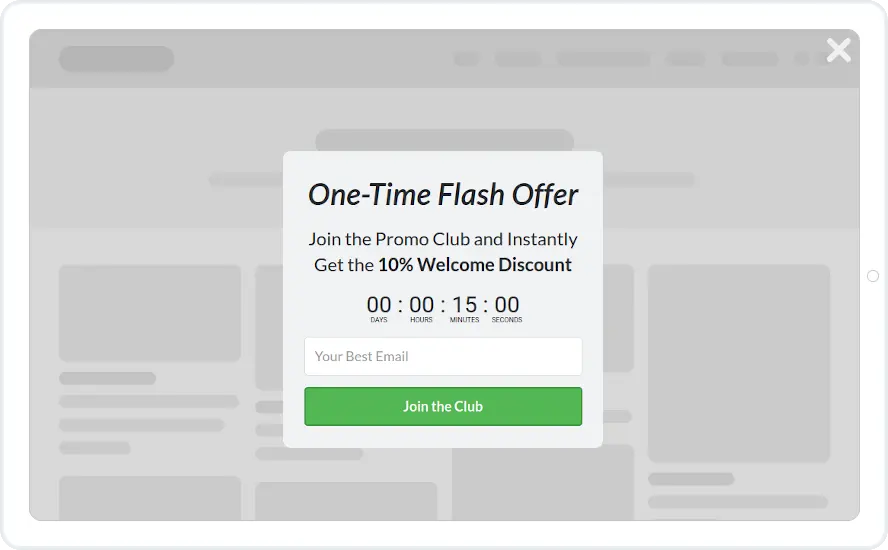
Connect MailerLite to Shopify in six steps
You need admin access to your Shopify store and a MailerLite account.
- 1Install the Shopify app
Install Convertful: Lead Generation from the Shopify App Store, then click Approve to link the store to Convertful.
- 2Turn on the app embed
Paste your Convertful Owner ID into the Convertful app embed in the theme settings, switch it on and save. Then click Check Connection in Convertful.
- 3Paste your MailerLite API key
In MailerLite, open Integrations and then the Developer API page to copy your key. In Convertful, add MailerLite under Integrations and paste it.
- 4Pick defaults and fields
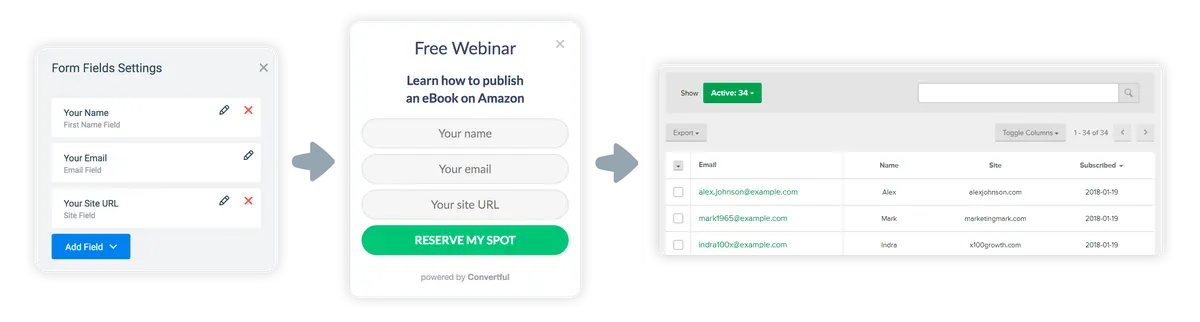
Choose where new subscribers go by default. Convertful matches your MailerLite custom fields to the form, and you can change the matches.
- 5Choose a group for each widget
On the submit button, add Add subscriber to group and pick the group for this offer. You can also remove people from a group or update a field.
- 6Set the rules and activate
Choose the trigger and the pages, add any Shopify rules, then save and switch the widget on.
A MailerLite group for every offer
Give the welcome wheel, the cart saver and the launch list their own groups, and send each one the emails that fit. Extra form fields, such as a favourite product, go into MailerLite custom fields.
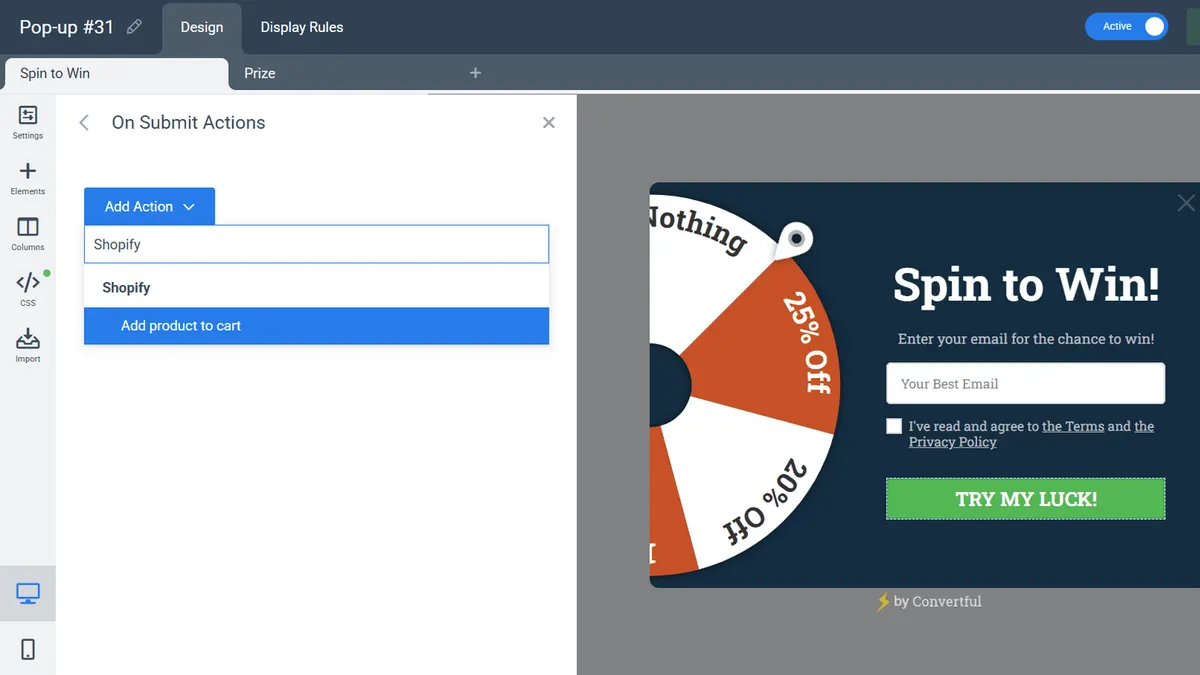
Add to cart from the same pop-up
A button can put a chosen product in the shopper's cart while it saves their email to MailerLite. Shopify rules decide where the widget shows: by page type, product in the cart, cart value or logged-in status.
- Unique codes. A one-off Shopify discount code per spin or scratch, saved to a MailerLite field.
- One payment. Add to cart, cart rules and unique codes are the Shopify premium features, a one-time $10.
MailerLite widgets for Shopify stores
MailerLite and Shopify questions
Where do I find my MailerLite API key?
In MailerLite, open Integrations and choose Developer API. The MailerLite setup docs show the screen.
Can widgets use MailerLite data to decide who sees them?
No. The MailerLite connection sends subscribers, groups and fields one way. To keep an offer away from people who already signed up, use a Don't Show If rule, which can hide a widget from anyone who has subscribed through any widget.
Can the discount code go into a MailerLite email?
Yes. The prize and the code are saved in fields you name, and you can map those to MailerLite custom fields for your welcome email.
Other Shopify setup guides
Grow your MailerLite list from Shopify
Install the free app, paste your MailerLite key and publish your first offer.